Finger.exe is a legitimate Windows command-line utility for the legacy Finger protocol. Most organizations have little reason to use it, but its presence can make it useful to an attacker. A native, Microsoft-signed file may also attract less scrutiny than an unfamiliar executable.
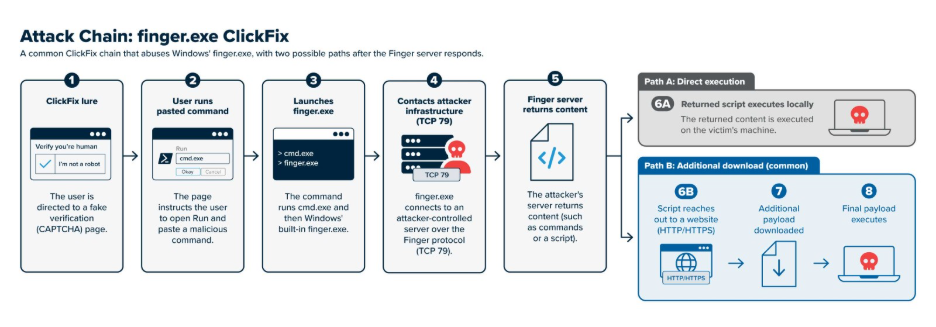
Attackers can abuse Finger.exe to retrieve text from an external server. It does not execute that text by itself. The danger appears when an attacker pairs it with a command interpreter or another process that treats the response as a command. ClickFix social engineering can persuade a user to run the chain.
What is Finger.exe?
Finger.exe is Microsoft's client for the Finger user-information protocol. A command such as finger username @ host contacts a remote system running a Finger service and requests information about the named user. The username is optional, but the host is required. The stock client uses TCP port 79 and does not provide a command-line option for choosing a different port.
The protocol sends a short query and receives a text response, traditionally in ASCII, before the connection closes. Attackers do not need it to be sophisticated. They only need a trusted binary that can reach an external host and return attacker-controlled text.
How attackers can abuse Finger.exe
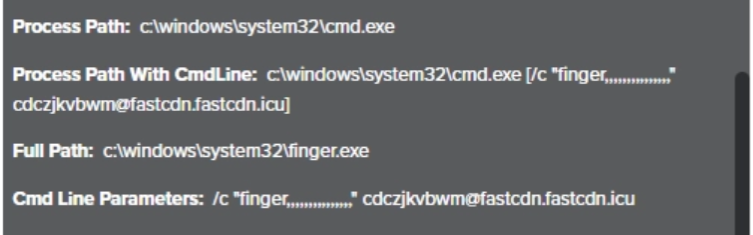
An attacker can operate a server that answers Finger requests with a command or script text. A malicious command line can start Finger.exe, retrieve that response, and pass it to cmd.exe or PowerShell.
The interpreter performs the execution. A related chain can redirect the response to a local file and launch it in a later step.
This technique fits ClickFix attacks.
A fraudulent browser message may tell the victim that a verification or repair requires copying text into the Windows Run dialog or a terminal. The user launches an approved Windows component, so the chain may not begin with a new executable. The retrieved instructions can then start malware, persistence, data theft, or further discovery.
Finger.exe can also be renamed. Embedded OriginalFileName metadata and file characteristics can help identify a renamed copy, while process and network context show how it was used.
Finger.exe has useful limits for defenders
The stock Windows client communicates over TCP port 79, with no option to select another port. Blocking that outbound traffic prevents it from reaching an internet-hosted Finger service. The protocol is plaintext and text oriented, has no command-line proxy setting, and is awkward for large or binary transfers.
These constraints create practical control and detection points. A short text response may still start a more capable attack chain, especially where broad outbound access is permitted.
How to detect Finger.exe abuse
If the organization has no approved use for Finger.exe, any execution deserves review. Record its path, hash, signer, OriginalFileName, command line, parent and child processes, user, device, and network destination. Matching only the visible image name can miss a renamed copy.
Pay particular attention when Finger.exe appears near a pipe or redirection operator, interacts with cmd.exe or PowerShell, or writes a file that another process executes. A browser, explorer.exe following Run-dialog activity, a script host, a service, or a web server worker process are suspicious parents. A legitimate administrator could still be testing a legacy service.
Alert on outbound TCP port 79, especially to the internet. Bursts of short connections may indicate repeated retrieval or attempted data transfer. Wireshark can filter for the Finger protocol or TCP port 79 and expose the plaintext exchange. For suspected ClickFix, correlate the event with browser history, process telemetry, recent downloads, user reports, and Run-dialog history where available.
How to prevent Finger.exe abuse
Deny execution when the utility has no business purpose. Application Allowlisting rules should use dependable file identity, such as signing information, original filename metadata, or a hash, rather than a path-only rule that a renamed copy may evade. Test for any legacy operational requirement before enforcement.
Block outbound TCP port 79 at the host and perimeter. A default-deny egress policy is more durable because an attacker can substitute another native utility. Allow only the destinations, ports, and processes required for the device's role.
Restrict the interactions that make the chain useful. Ringfencing policies can prevent browsers from launching unapproved system utilities and limit what approved applications may launch, access, or connect to. This can break a copied browser command before it becomes a working execution chain.
Detection remains important for policy gaps and exceptions. EDR and MDR teams can investigate rare Finger.exe execution, suspicious process relationships, and port-79 traffic. Training should explain that legitimate websites do not require visitors to paste commands into Run, PowerShell, or a terminal. Organizations may disable the Run command for standard users where operationally appropriate.
How ThreatLocker reduces the Finger.exe attack path
ThreatLocker deploys a prevention-first approach to narrow the available path for a potential Finger.exe attack, while also enlisting detection tools to help confirm occurrences and support containment when an attacker reaches an allowed or unmonitored action.
- Application Allowlisting denies Finger.exe when it is not approved and blocks unapproved payloads later in the chain.
- Ringfencing places boundaries around browsers, command interpreters, and other approved applications.
- Zero Trust Endpoint Firewall blocks outbound TCP port 79 and enforces process-aware network policies.
- EDR Real-Time Threat Detection and MDR add visibility into execution, child processes, scripts, and network activity.
For ThreatLocker customers, you can find a community policy that can be downloaded from the community page by searching finger.exe. This is an application control policy that will block finger.exe completely.
Control what runs and what trusted tools can do
A Microsoft signature does not make every use of an application safe.
If Finger.exe is unnecessary, block it. If it must remain, limit its network access and application interactions, then monitor every use.
Frequently asked questions
Is Finger.exe malware?
No. Finger.exe is a legitimate Microsoft Windows utility for querying a remote Finger service. Attackers can abuse it as a living-off-the-land binary, so its presence is not malicious by itself, but unexpected execution should be investigated.
What port does Finger.exe use?
The Windows Finger client uses TCP port 79. Its documented syntax does not include an option to select another port, which makes host and perimeter egress blocking an effective control against the stock client.
Can Finger.exe execute commands?
Finger.exe retrieves text from a remote Finger server; it does not execute the response on its own. An attacker must combine it with cmd.exe, PowerShell, redirection, or another process that interprets or launches the returned content.
Can attackers rename Finger.exe?
Yes. A copied executable can be given another name. Defenders should inspect embedded OriginalFileName metadata, signing information, hashes, behavior, and network activity instead of relying only on the visible filename.
What is the best way to stop Finger.exe abuse?
If there is no approved use, block the utility with application allowlisting and deny outbound TCP port 79. Add application interaction controls, process and network monitoring, and ClickFix-focused user education to cover the broader attack chain.